


Upper arm
Tattoo design studio
AI Tattoo Generator for Custom Designs
Sketch a memory, a motif, or a few words. Choose an ink style and take your design to your tattoo artist.
See a tattoo concept on skin
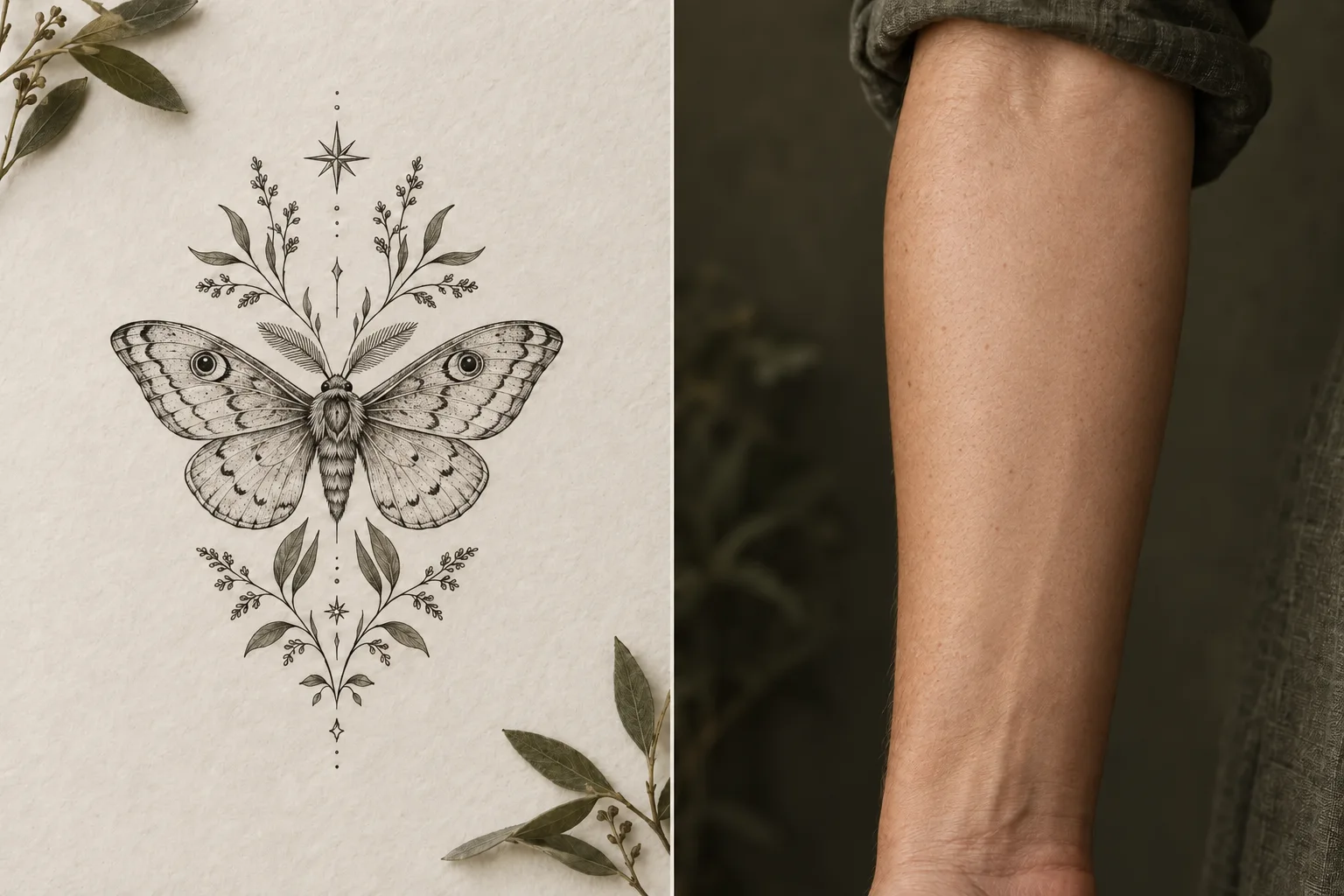
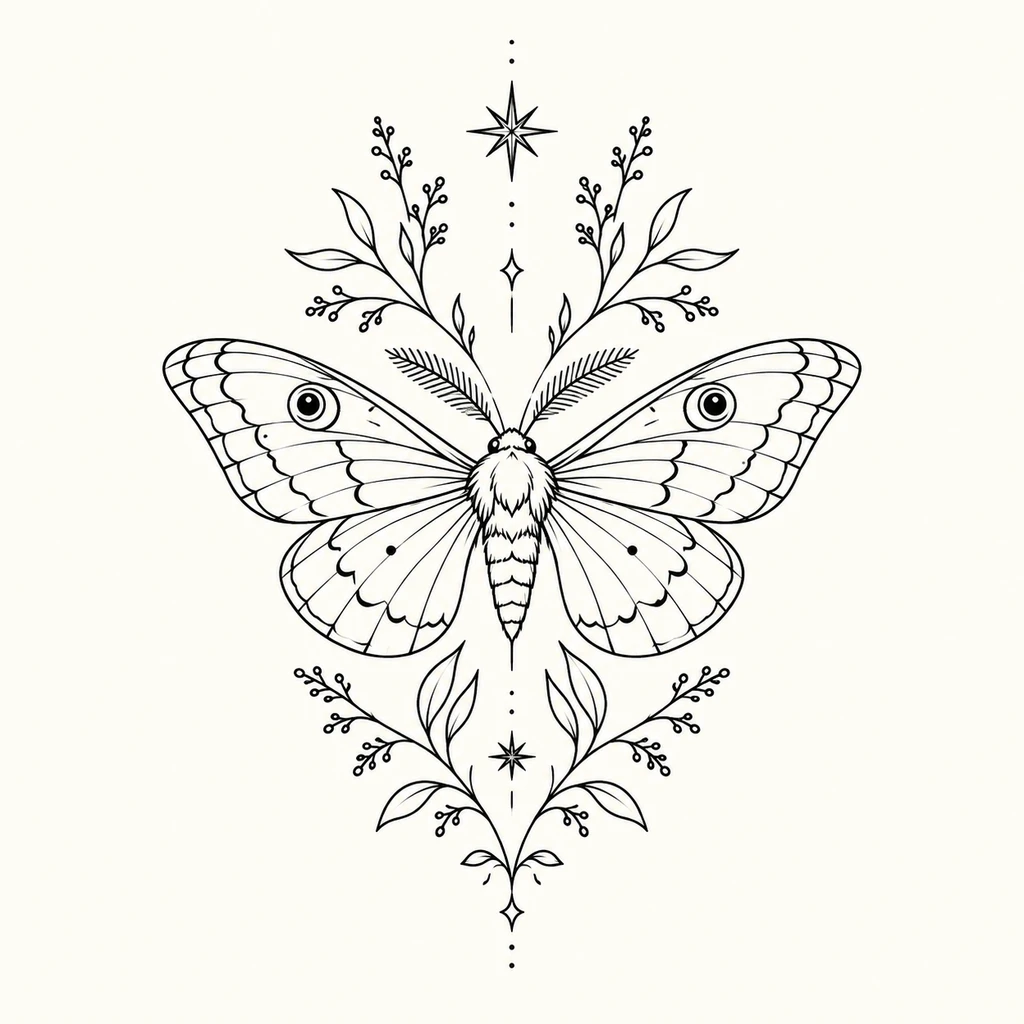
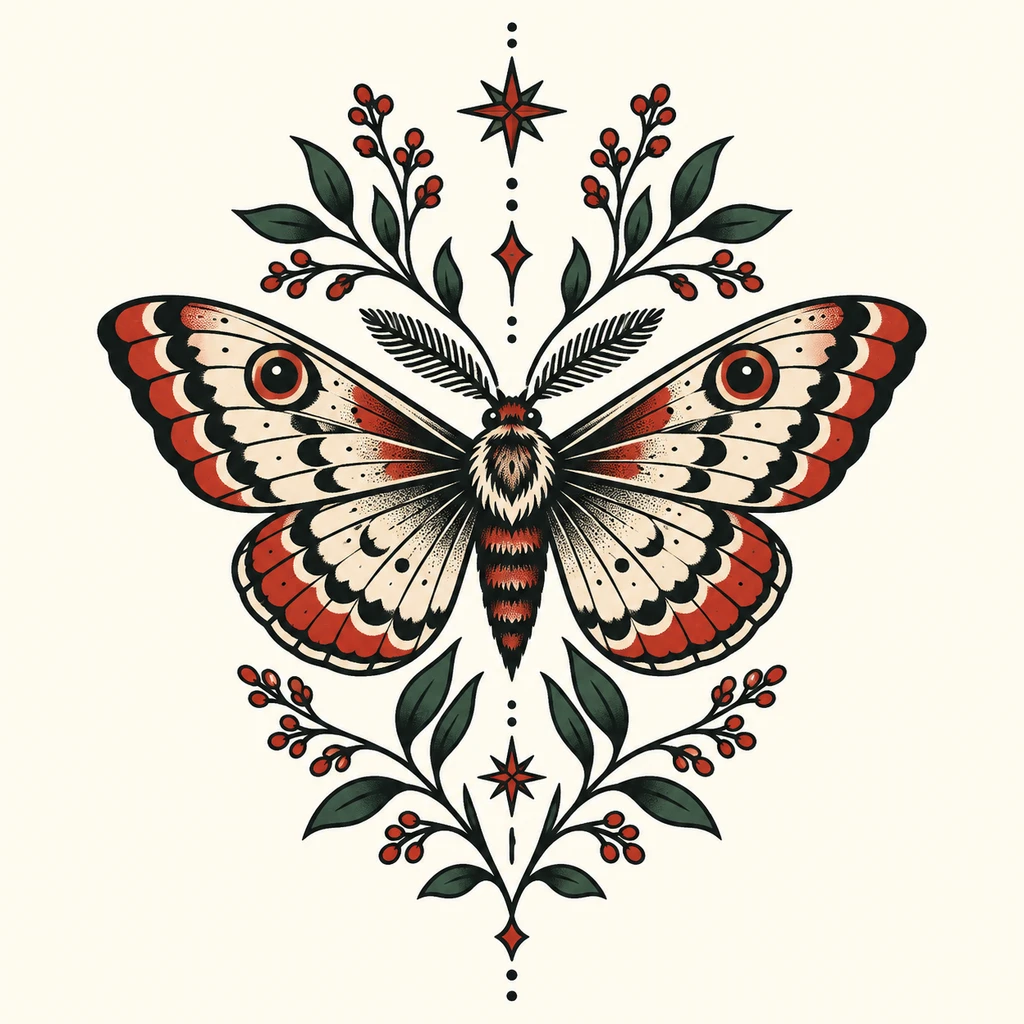
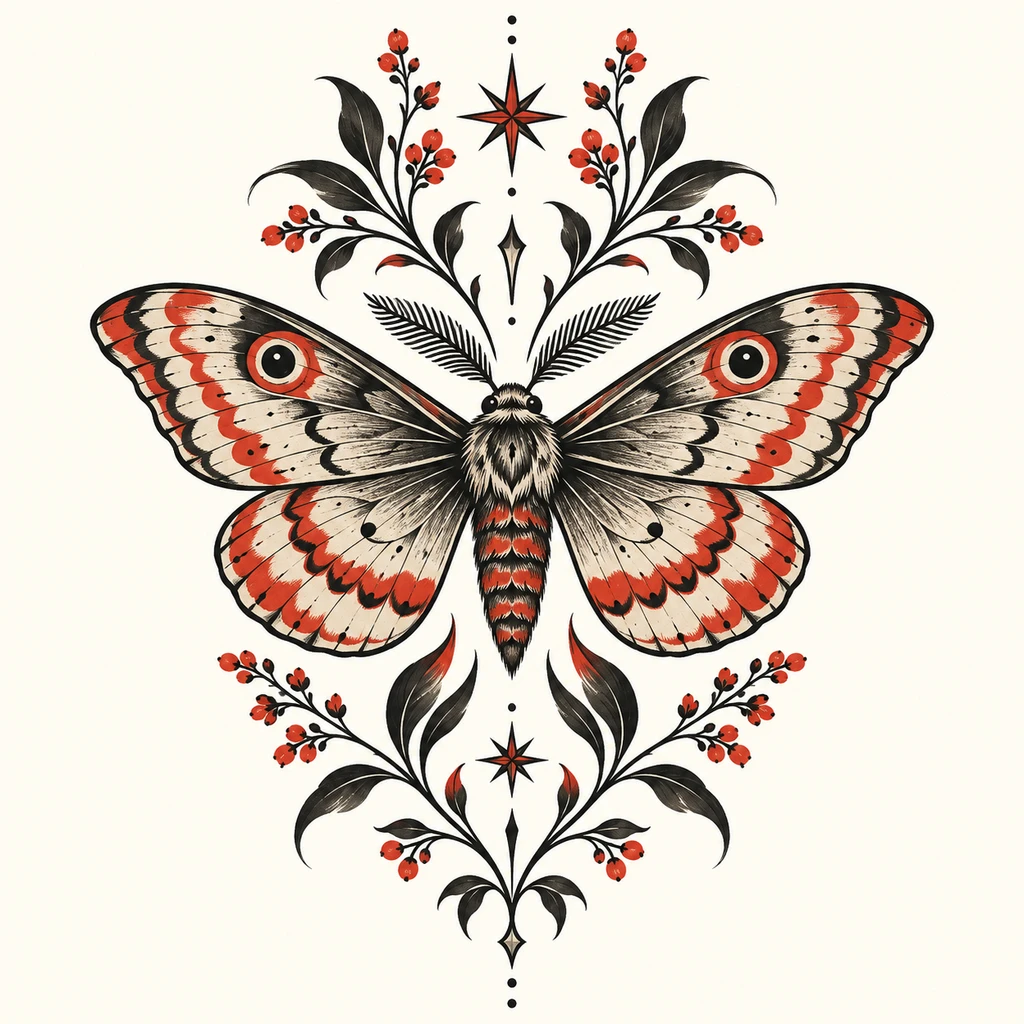
See how a concept from a tattoo generator can read differently on paper and on skin. This AI-generated example helps you think about composition, orientation, and placement. It is an illustration, not a live preview of your own body or a photo of a finished tattoo.
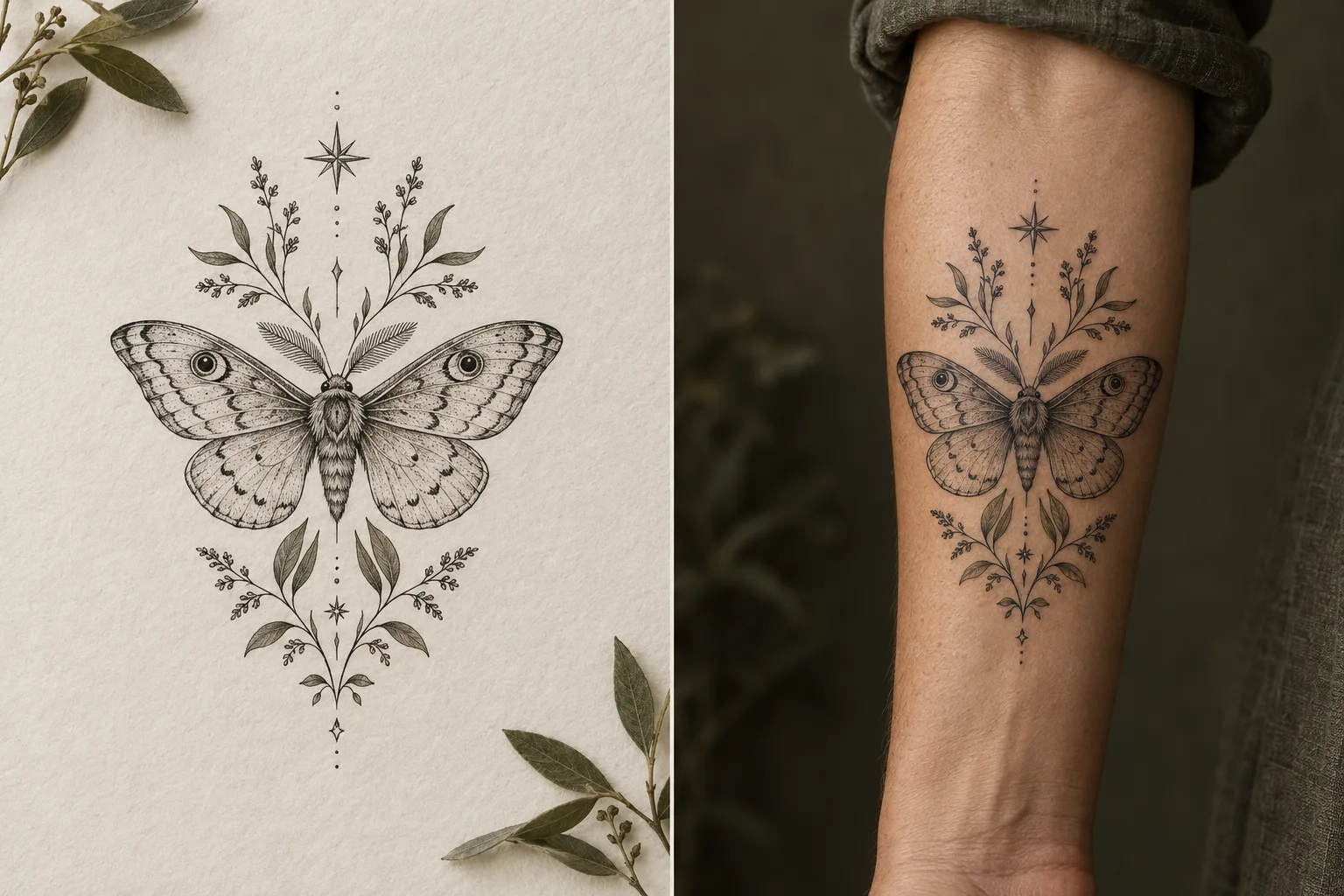
The designOn skinWith tattooNo tattoo
Drag right to reveal the tattoo. Or use the arrow keys.
AI-generated example. Not a live try-on.
THE INSPIRATION EDIT
Tattoo ideas to make your own
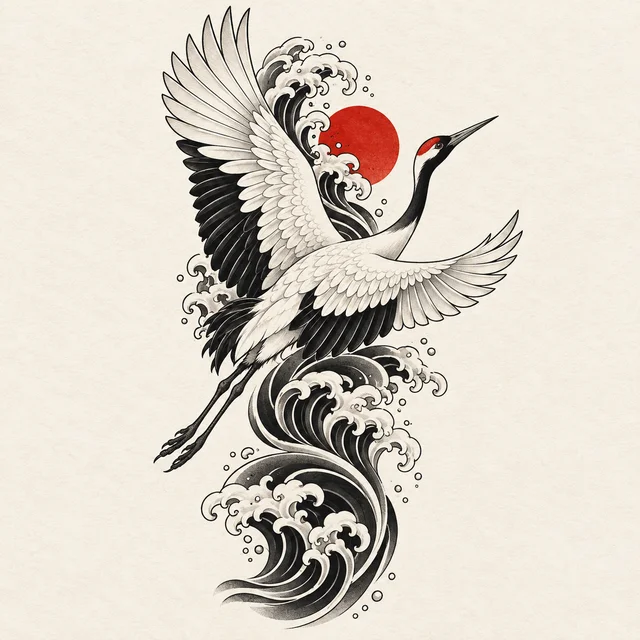
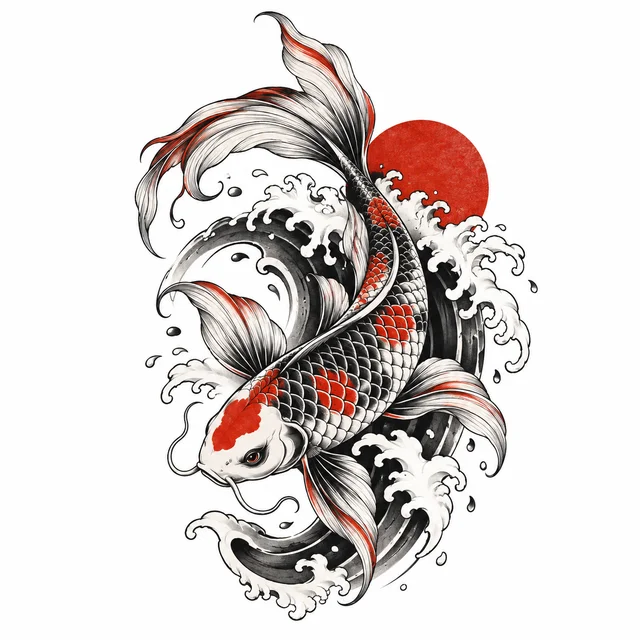
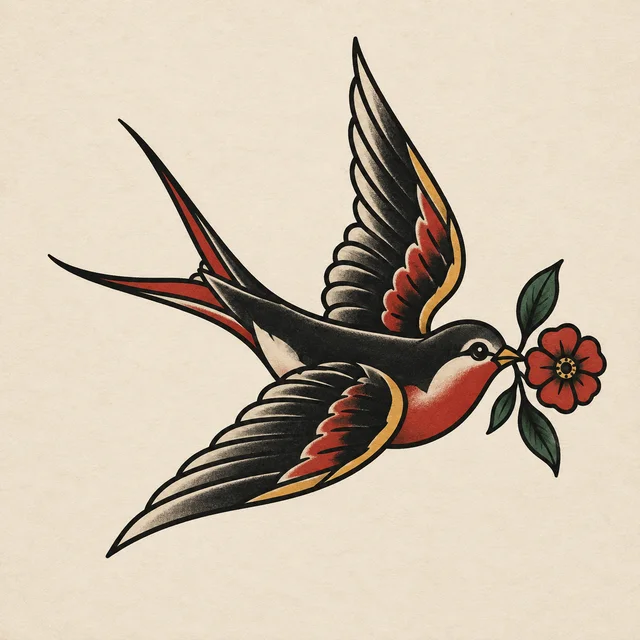
Explore tattoo ideas built around animals, flowers, symbols, and abstract shapes. Open an image to study its lines and composition, or download it as a reference. Notice which details draw your eye before describing your own direction in the tattoo generator. These AI-generated examples are starting points.
AI-generated inspiration. Every design is a starting point.
FIND YOUR VISUAL LANGUAGE
Explore six tattoo design styles
Soft lines or a bold statement: choose the visual language that fits your idea. The tattoo generator offers six styles. Compare their outlines, shading, and open space before selecting one; the same subject can feel very different in another style.
Fine line
Describe delicate outlines, botanical details, or a light composition. In the tattoo generator, name the main subject before adding small accents. Keep its silhouette clear so the concept does not depend on tiny decorative elements.
Minimalist
Start with a simple shape, a small symbol, or one meaningful object. Ask for fewer elements and open space around the subject. Compare a version with a single supporting detail against one without it.
Traditional
Explore bold outlines, recognizable motifs, and a focused color palette. Swallows, flowers, and animals can give you a clear starting point. Describe the pose and two or three colors to keep the direction consistent.
Japanese
Try a koi, crane, wave, or floral motif with a flowing composition. Tell the tattoo generator which subject should lead and how the supporting elements should connect. A clear direction of movement helps organize the image.
Blackwork
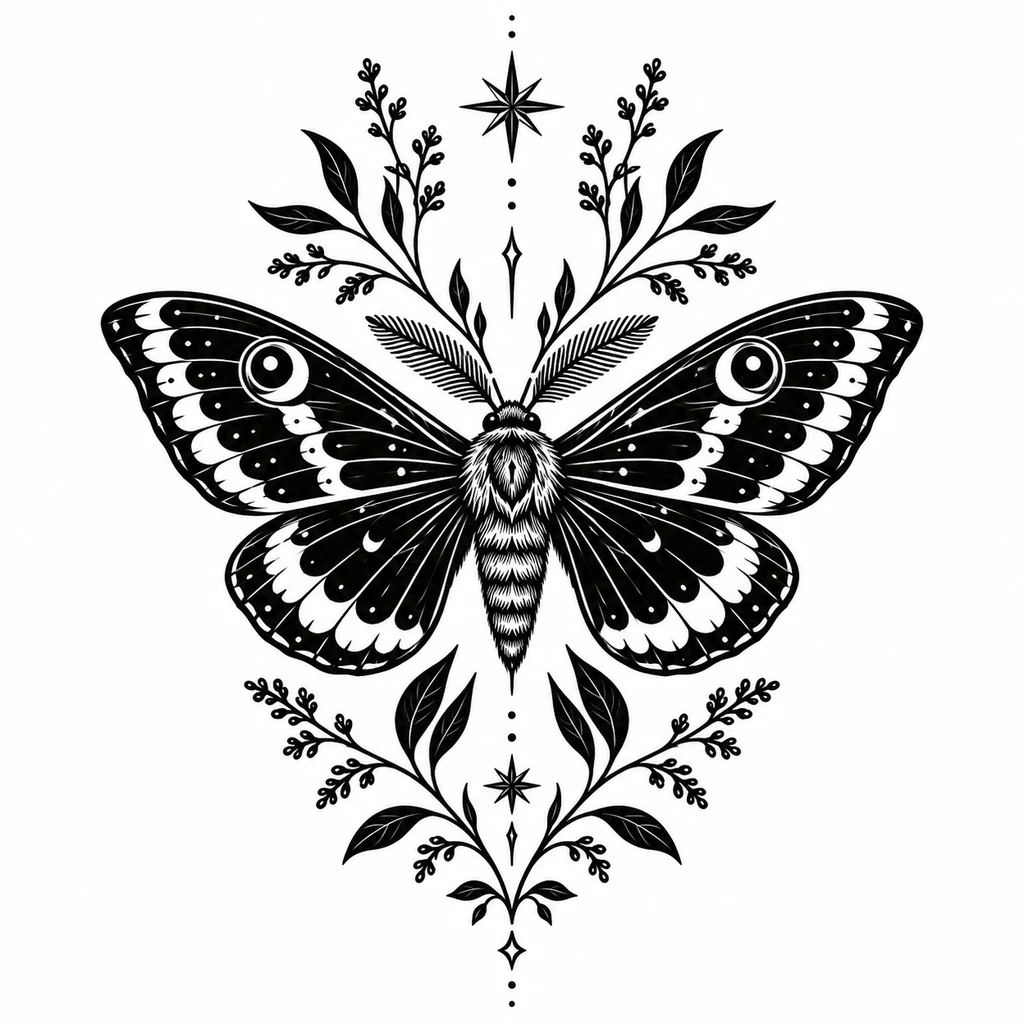
Describe solid black shapes, contrast, and negative space. Decide whether you want an ornamental pattern, a figurative subject, or a graphic silhouette. Use the tattoo generator to compare a dense composition with a more open one.
Geometric
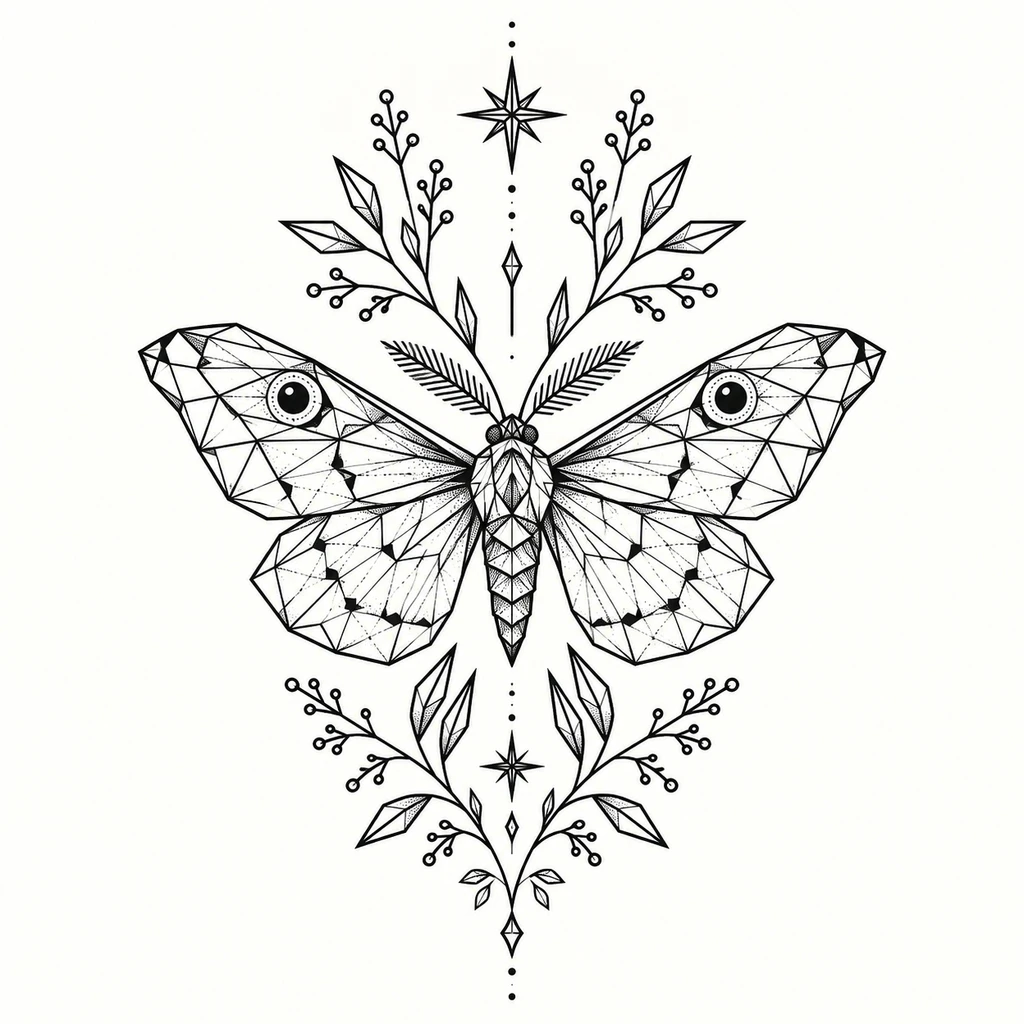
Build around symmetry, repeating shapes, or an animal combined with angular forms. Specify whether the composition should feel balanced, structured, or more organic. Name the shapes you want to repeat and keep their arrangement focused.
PICTURE THE POSSIBILITIES
Explore tattoo placement ideas
Choosing a placement in the tattoo generator helps guide the shape of your concept. You might ask for a tall arrangement for a forearm or a compact symbol for a wrist. Consider whether the subject should face inward, outward, or along the body area. The setting guides the generated artwork; it does not measure your body or simulate the design on your skin. Use these AI-generated illustrations to start a conversation about size and position.
Forearm
After dark
Wrist
A quiet branch
AI-generated placement illustrations, not live try-on or customer photos. Discuss sizing and placement with your tattoo artist.
Find the idea behind your next tattoo
Choose a chest or back layout, or explore meaningful symbols before turning your brief into a tattoo generator concept.
Chest Tattoo Ideas for Men: Bold and Built for Your Frame
Compare chest layouts, sizes and styles before planning a piece with your artist.
Tattoo Symbols and Meanings
Explore 56 symbols, their possible interpretations and cultural context.
Back Tattoos for Men: Choose Your Layout
Choose upper, half, full-back or spine layouts and plan the scope.
FROM A THOUGHT TO A TATTOO
How to use the AI tattoo generator
Explore a concept before you commit to ink. The tattoo generator turns your written direction into an image; you and your artist decide how that idea develops.
01 Describe your idea
Name the main subject, the mood, and two or three details that matter to you. A short, focused description is easier to refine than a list of competing ideas. Start with the detail you would most want to keep.
02 Choose a style and generate
Select one of six styles in the tattoo generator, then adjust placement, color, and detail. Sign in and check the displayed credit cost before generating. Each generation creates a new concept. Review its composition before deciding what to change next.
03 Download and discuss
Save a result you like from the tattoo generator and take it to your tattoo artist. Discuss the composition, intended size, placement, and details you want to keep. Bring a short written brief so they can adapt the reference for your tattoo.
How to write an AI tattoo generator prompt
Give the tattoo generator a clear brief: start with the main subject, add a visual style, and describe the arrangement. Choose one focal point before adding accents. For example:
A fine-line fox curled around a crescent moon, with two small wildflowers, black ink, and open space around the design.
Use concrete details such as “one peony,” “symmetrical wings,” or “a vertical composition” instead of relying only on words like “beautiful.” If the result feels crowded, remove a supporting element or choose a simpler detail level. If the mood feels wrong, change the subject’s pose, the linework, or the balance of dark and open areas. Compare the overall shape first, then the smaller details.
Change one part of the description at a time so you can compare directions in the tattoo generator. Reusing a prompt starts another generation and uses credits; it does not edit the existing image. Keep a note of the wording that gave you a useful result. Leave names, addresses, and other sensitive personal details out of your prompt.
PICK YOUR STARTING POINT
Four ways to start with the AI tattoo generator
Start from words, a reference photo, a body placement, or the free tools. Here is what each route in the AI tattoo generator does, and what it does not.
AI tattoo generator from text
Type a description of the subject, mood, and layout, pick one of six styles, and the AI tattoo generator returns a flat design concept. Text is the only input the generator needs, so a clear sentence matters more than drawing skill.
Write a promptAI tattoo generator from photo
The generator does not read uploaded photos. To work from a photo of a pet, a flower, or a place, describe what you see: the subject, its pose, and the details worth keeping. If you already have tattoo artwork as an image, upload it to Tattoo try-on instead.
AI tattoo generator on body
The generator makes flat artwork; Tattoo try-on shows it on a body. Upload a body photo or choose a sample, then drag, resize, and rotate the design. The placement preview is free, and an optional AI render blends the ink into skin for 1 credit.
Open Tattoo try-onFree AI tattoo generator tools
Browsing the example gallery, exploring the six styles, reading the tattoo idea guides, and adjusting a try-on placement preview are free. Generating your own design uses account credits; the cost appears beside the Generate button before you confirm.
View pricing
A FEW THINGS TO KNOW
AI tattoo generator FAQs
Answers about creating a design, account credits, privacy, and working with your tattoo artist.
How does the AI tattoo generator work?
The AI tattoo generator uses your description, chosen style, and optional preferences to create an image. When generation is available, sign in and use your account credits. Successful designs are saved in your design history, where you can revisit and download them. Check whether the main subject, composition, and mood match your brief before starting another generation. The result is a concept to develop with your artist, who can adapt its proportions and linework.
Do I need drawing skills?
No. Explain your idea to the tattoo generator in everyday language, or start with a subject from the example gallery. You can describe shapes, symbols, mood, and composition without knowing illustration terms. If the first result is not what you imagined, adjust one part of the description and generate another concept. Saying “one flower with open space around it” gives a clearer direction than a long list of unrelated motifs. Each new generation uses credits.
Is the AI tattoo generator free to use?
You can browse the example designs and explore styles before generating. Creating your own design with the tattoo generator requires a signed-in account and available credits. Check the cost shown beside the Generate button and visit Pricing for current plans. Review those details before starting a new generation, including when you reuse an earlier prompt. Browsing an example does not create a new personalized image; generating another concept is a separate request.
Are my tattoo designs private?
Your tattoo generator results are kept in account history protected by sign-in, rather than displayed in the public inspiration gallery. Your prompt is sent to the configured AI provider to create the image. Describe the visual idea without including sensitive personal information; a symbol can represent a memory without naming everyone involved. Refer to the Privacy Policy for data-handling details.
Can I use the design as a tattoo stencil?
Treat a download from the tattoo generator as a visual reference for your tattoo artist. It is not a ready-to-tattoo stencil. Your artist should review the proportions, intended size, placement, and linework, then make any changes needed for the final design. Bring the image along with notes about what you want to keep or change. Point out the focal subject, preferred colors, and any details that carry personal meaning so the discussion starts with a clear brief.
Can the AI tattoo generator show a tattoo on my body?
The homepage tattoo generator creates a flat design concept. Its placement setting helps guide the artwork’s composition, while the on-skin comparisons here are AI-generated illustrations. For a separate placement preview, open Tattoo try-on and place an image over a sample body photo or your own photo. You can move, resize, and rotate the design locally. This helps compare visual arrangements; it does not measure your body or determine the final stencil. Discuss actual sizing and positioning with your artist.
Can the AI tattoo generator make a tattoo from a photo?
Not directly. The AI tattoo generator works from a written description and does not accept photo uploads. Describe the photo instead: name the subject, its pose or angle, and the two or three details you want to keep, then choose a style. If you already have tattoo artwork as an image file, upload it to Tattoo try-on to position it on a body photo.
Your next tattoo starts with you.
Start with a subject that means something to you. Put it into words, choose your style, and explore your next tattoo concept with the tattoo generator.